BMW Apple CarPlay Retrofit
DIY, Affordable & Easy
What You Need to Unlock CarPlay
Discover how to easily determine if your BMW is equipped with a factory-installed WIFI antenna by visiting:
"Does my BMW have a WIFI Antenna?"


Step 1: The BMW CarPlay Generator
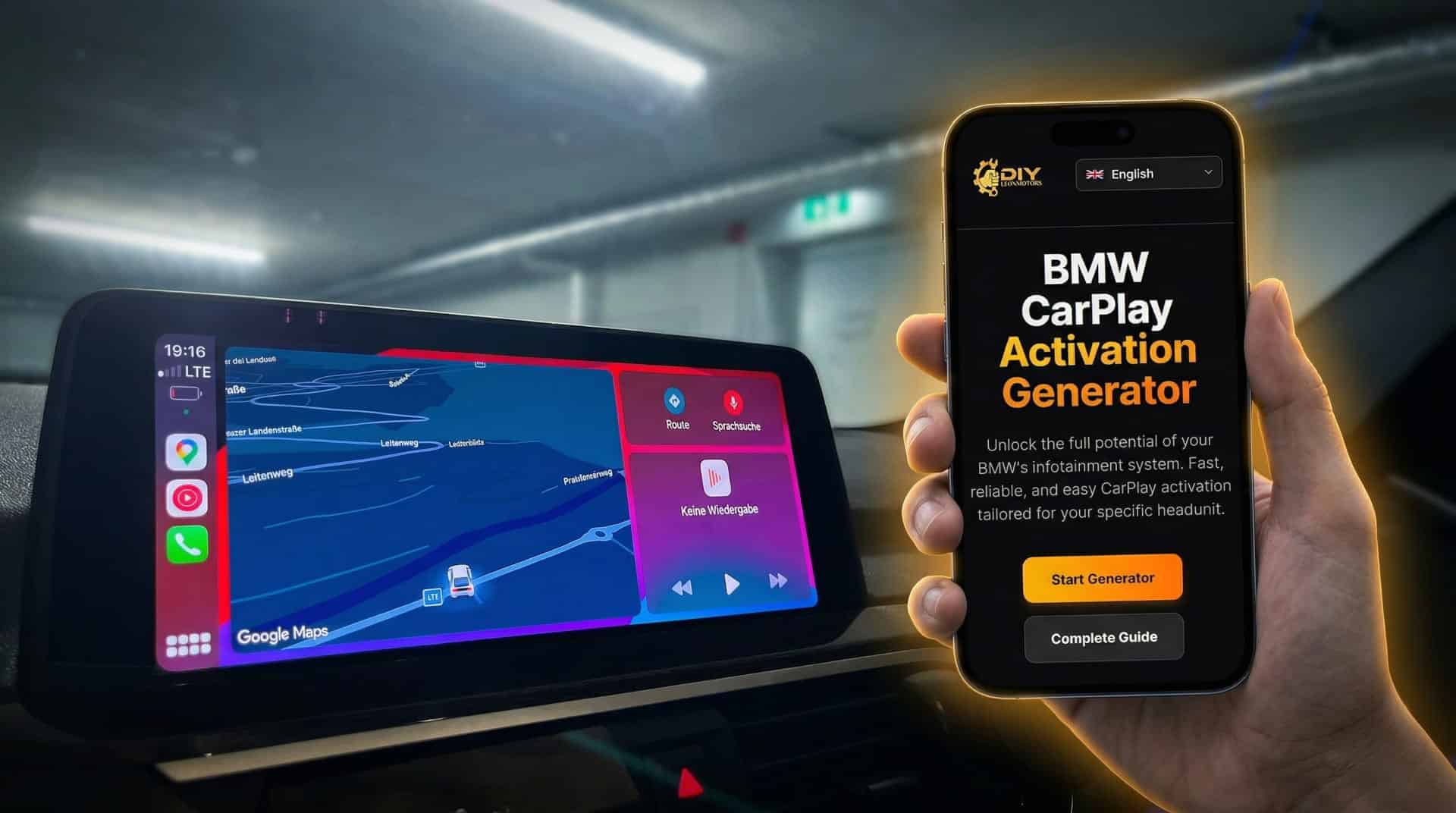
The first and most crucial step involves utilizing our BMW CarPlay Generator. This online tool performs two vital functions simultaneously: It verifies, based on your selected data, whether your BMW is indeed CarPlay-compatible, and subsequently automatically generates the vehicle-specific FSC code for you.
This also checks whether your BMW is suitable for Fullscreen CarPlay or only for Splitscreen CarPlay. The generator guides you through the individual steps and also shows you where you can find all the necessary data for your vehicle.
How to use the generator:
Open the BMW CarPlay Generator here: BMW CarPlay Generator or use the button above. Then click on “Start Generator”.
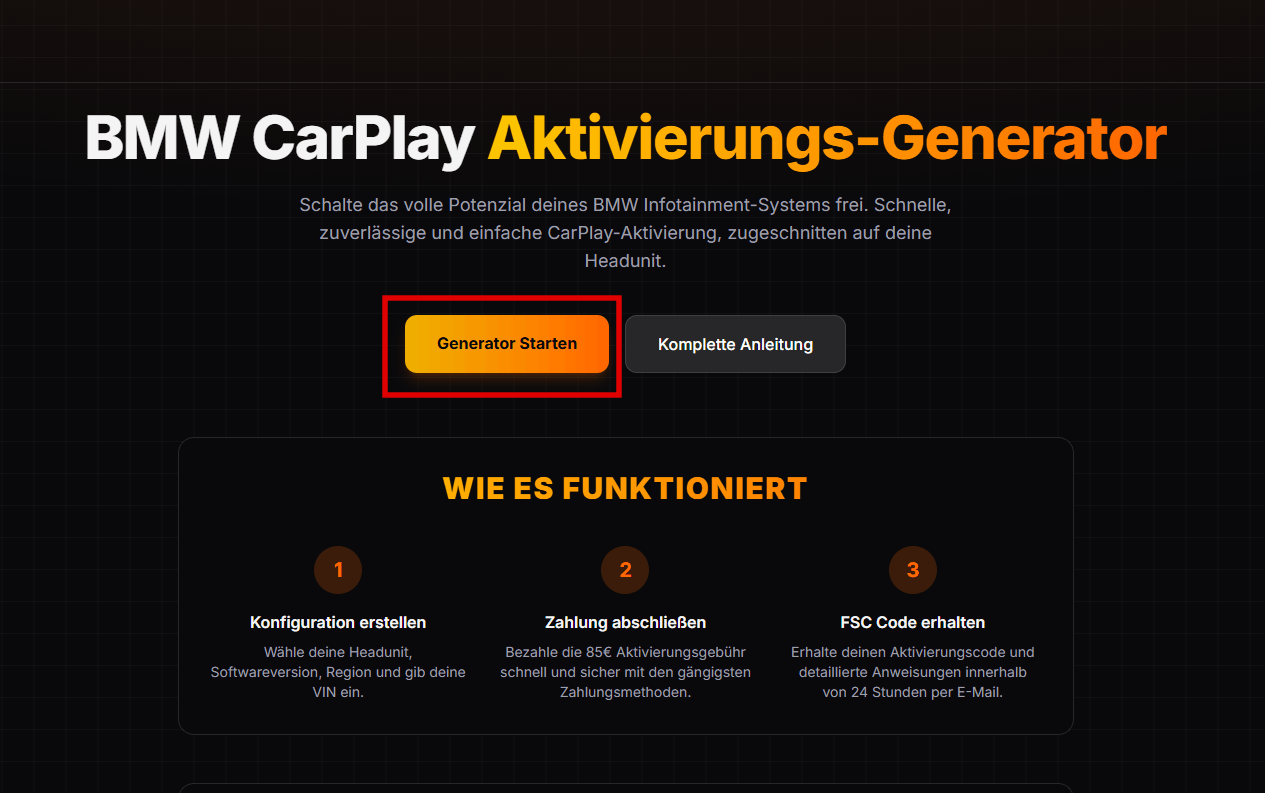
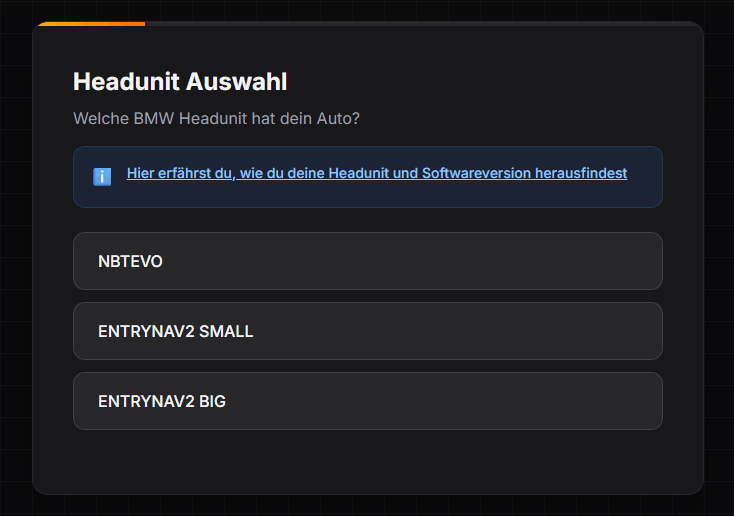
In "Step 1", you now select your head unit. If you do not know how to find this out, simply click on the blue link above the selection field. There, you will find step-by-step instructions on how to reach your head unit version and your software version via the menu path.
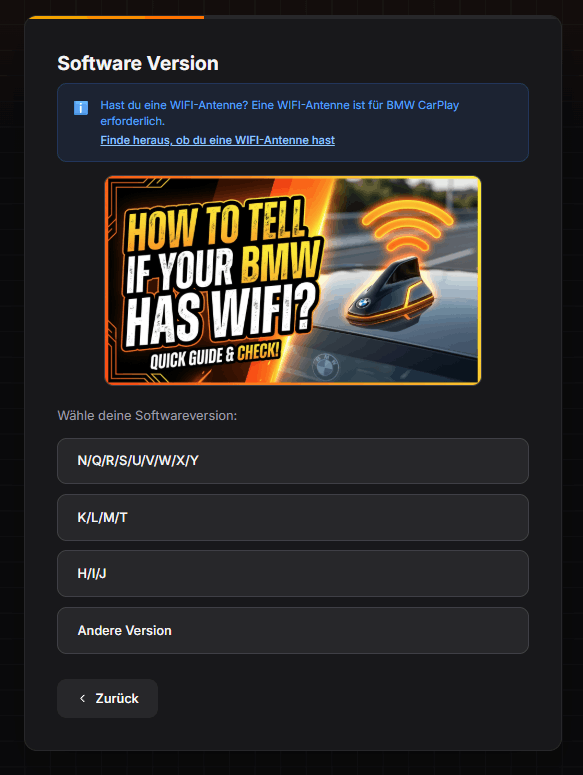
In “Step 2”, you then select your software version. In addition, you can use the info section to find out whether you have a WIFI antenna installed. In most cases, however, this is already prepared at the factory.
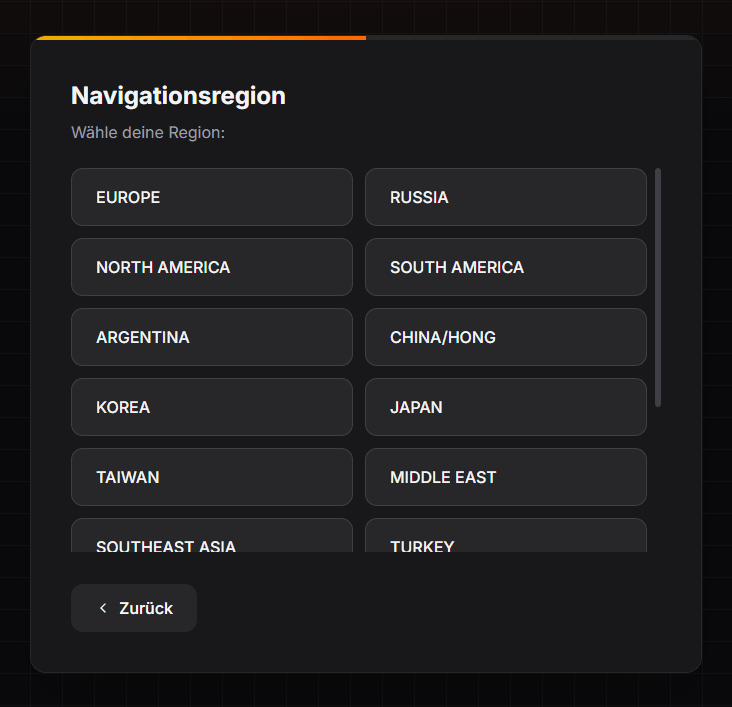
In “Step 3”, you now select your region.
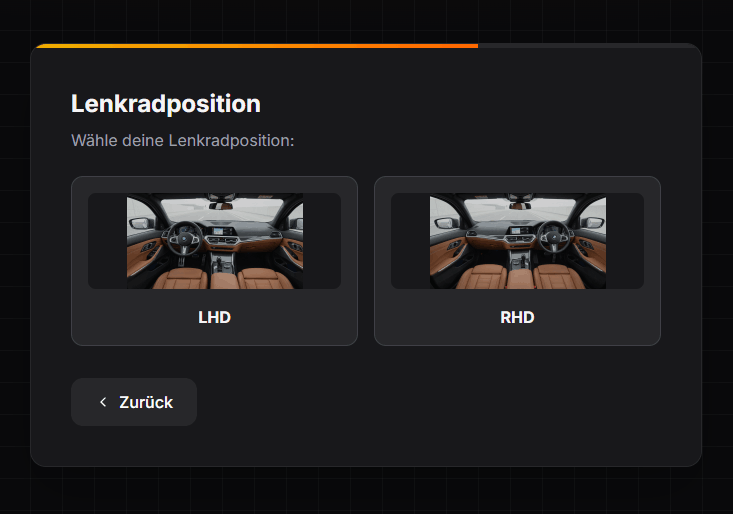
In “Step 4” you select your steering wheel position. Either “RHD” for right-hand drive or “LHD” for left-hand drive.
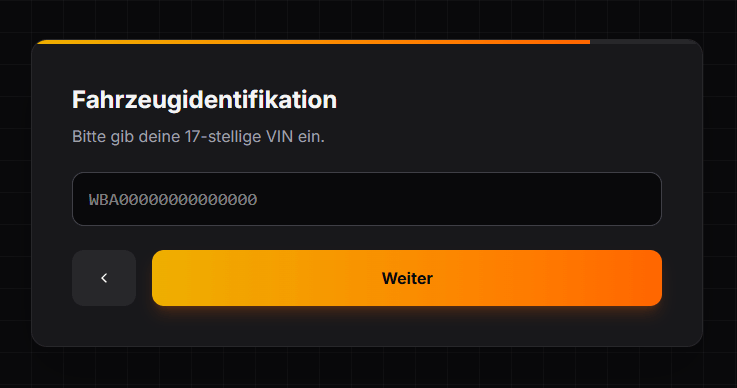
In “Step 5”, now enter your vehicle identification number (VIN/FIN). Make sure you enter it correctly.
In the last step, namely "Step 6", you first check all your entries again. In addition to the summary, you will be shown whether your head unit version supports fullscreen CarPlay or only splitscreen CarPlay. If everything is correct, enter your email address correctly, click on verify, and finally on the button "Proceed to Payment". There you will be redirected to the payment page.
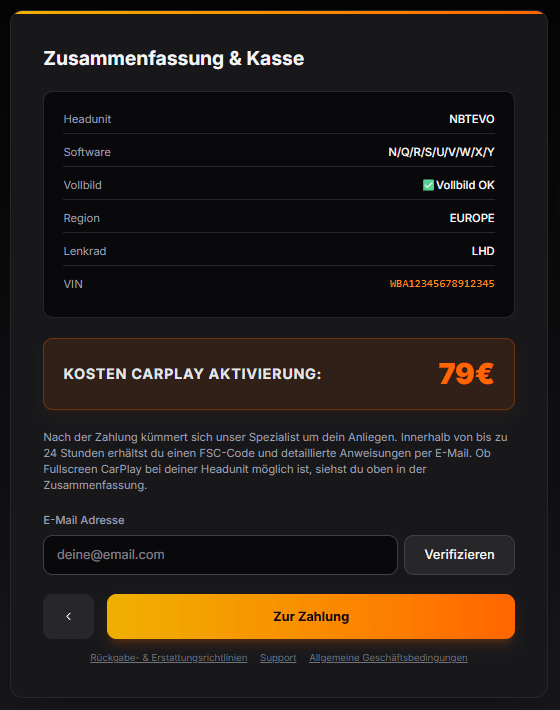
After payment, our specialists will send you the FSC code with further instructions by email as quickly as possible (maximum within 24 hours). You will also find a link to the software that is required in the email.
Step 2: Unlock BMW CarPlay Kodowanie
As soon as you have received your FSC code and downloaded the software (sent along with your purchase via the generator), head over to your car with the ENET cable and Windows laptop.
Note! Your laptop must be connected to the internet!
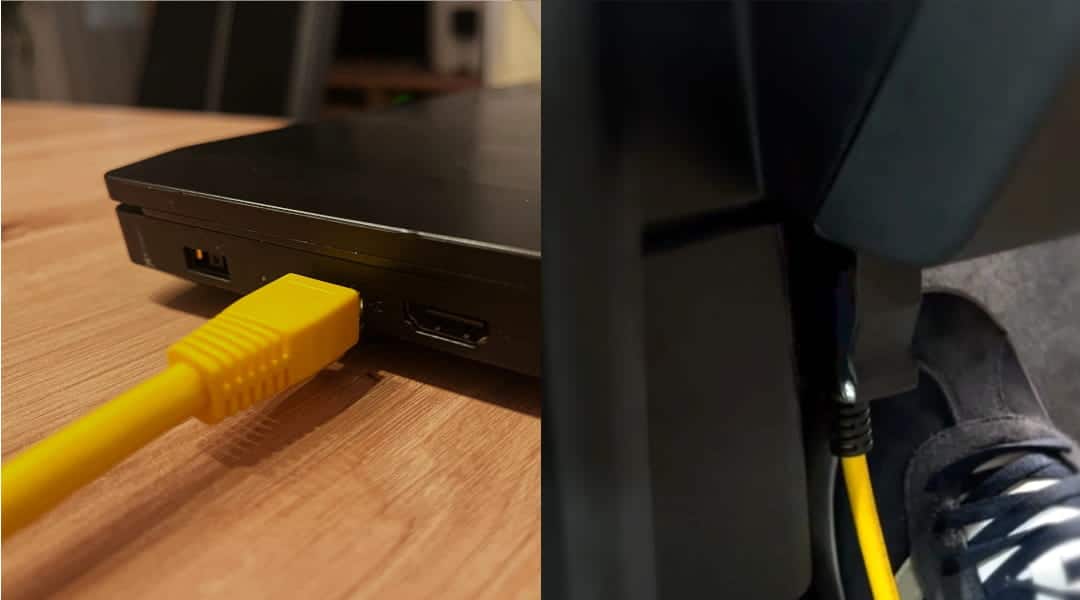
Plug the ENET cable into the OBD-II port of your BMW (usually under the dashboard on the driver's side). Connect the other end of the cable to your laptop's Ethernet port. Make sure your vehicle is switched on (ignition on, engine running only in case of a weak battery).
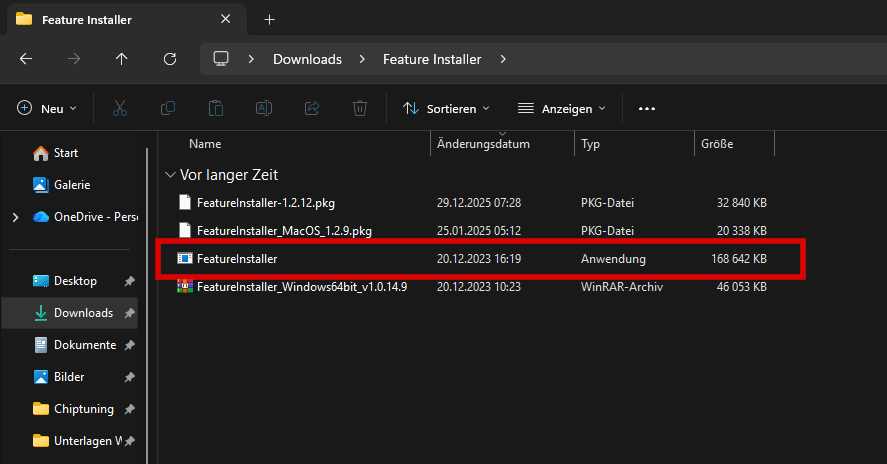
Next, start the software that you will also receive by email along with the code from the generator. The software does not need to be installed after downloading. You can launch the software directly from the downloaded file.
If the software has not already automatically recognized your vehicle and read the VIN, first click on the "Vehicle" button.
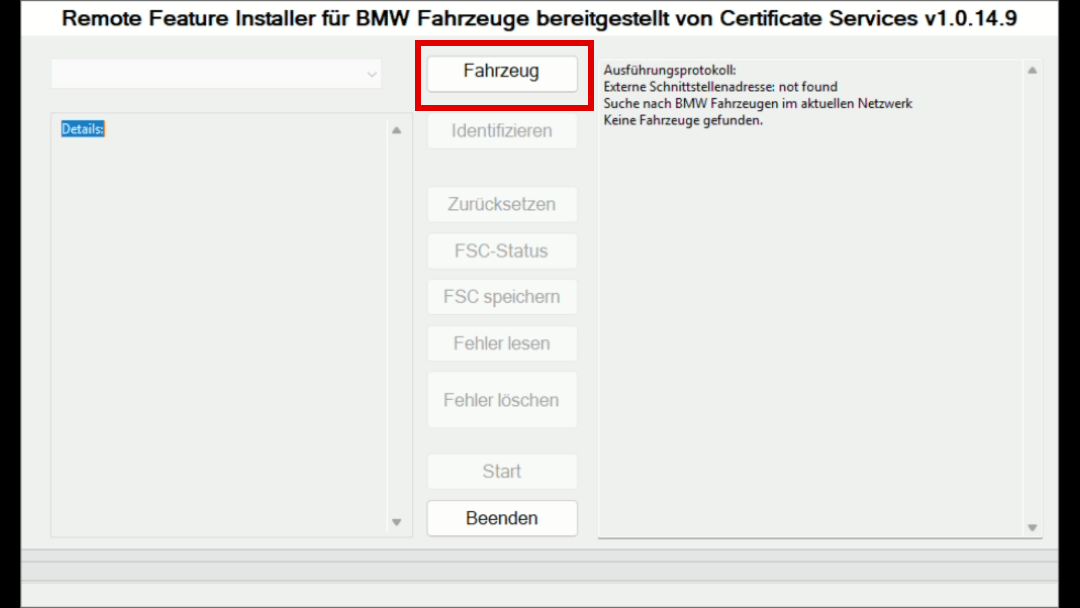
Next, click on the "Identify" button. The software will then ask you for the code you received via email from our generator. Enter it there and click on "Continue".
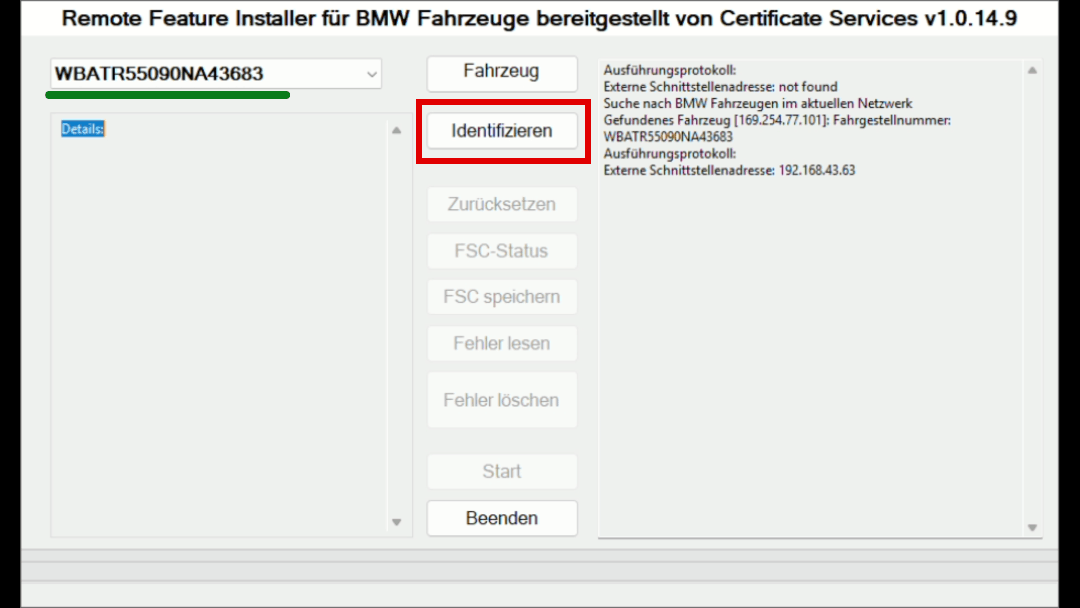
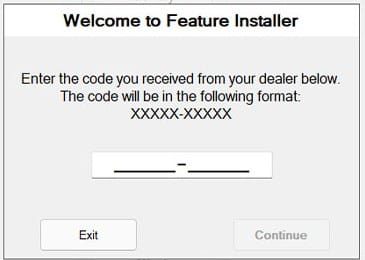
After a few seconds, the software should have identified your head unit. Then, simply click on "Start".
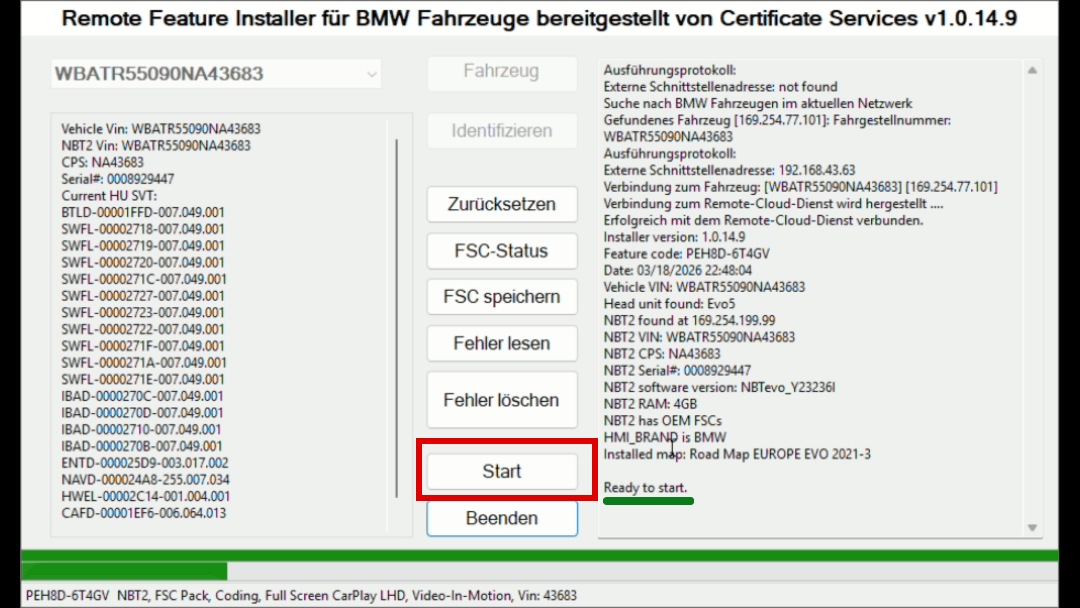
After starting, the program goes through exactly three steps. During programming, your head unit will turn blue, and it is possible that it restarts several times. Make sure that both your laptop and your vehicle have sufficient battery power.
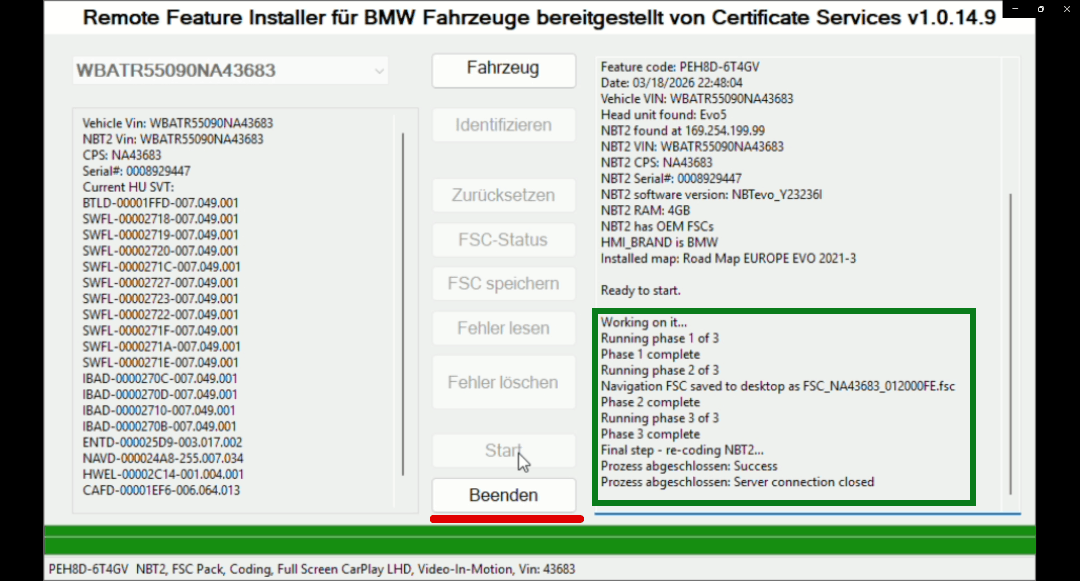
The process is completely reversible
If the CarPlay function has been deactivated after a BMW workshop visit or a software update, you can reactivate it at any time using the same software and code. Likewise, the activation can be completely reversed if needed. So you always retain full control.
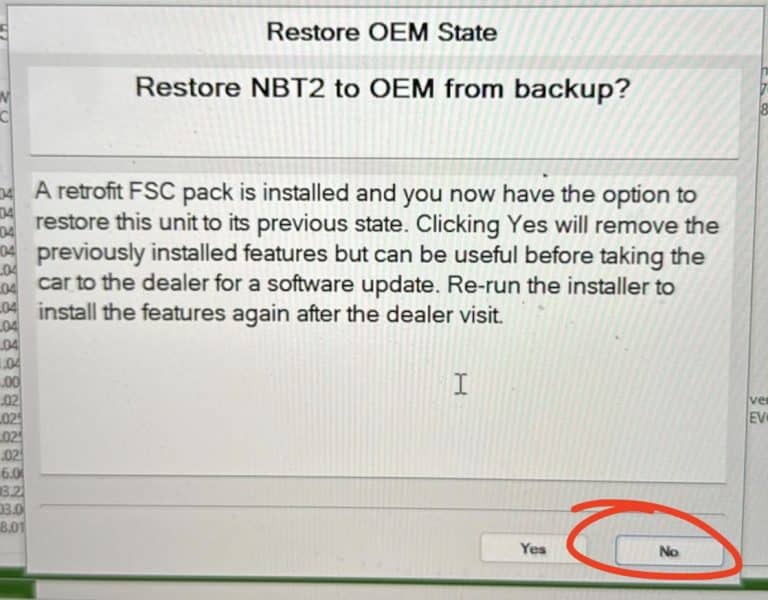
Step 3: Restart Head Unit & Test
After coding, you must restart the headunit. There are three methods available for this:
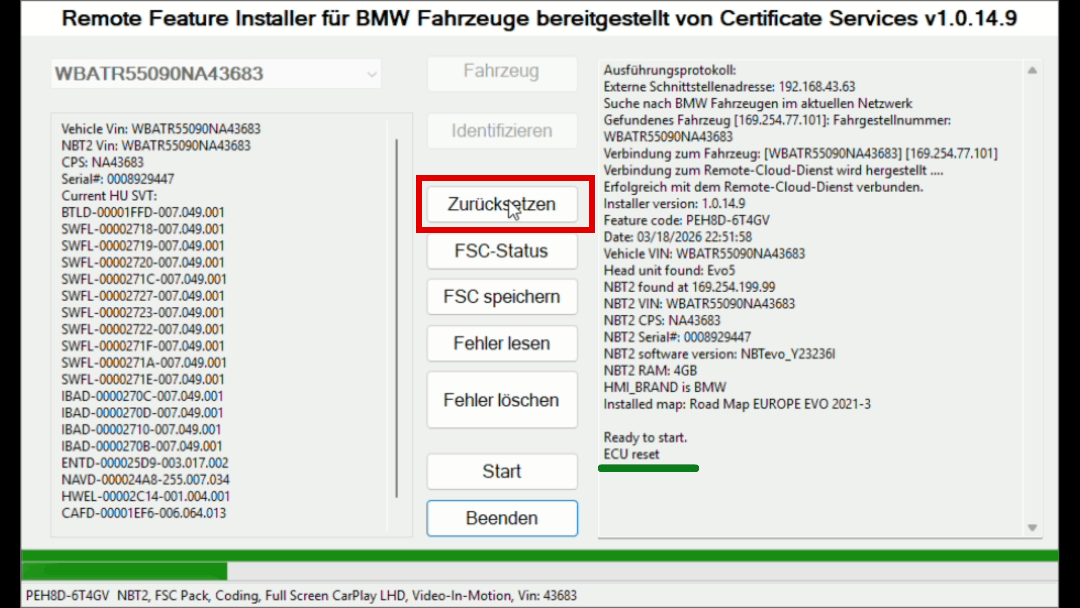
Once you have successfully reset your head unit, CarPlay should be available.
Conclusion: Unlock BMW CarPlay Affordably
With an affordable ENET cable, a Windows laptop with simple software, and the BMW CarPlay Generator, you can permanently and safely unlock Apple CarPlay in your BMW. No loss of warranty, no complicated technology – just an original feature of your vehicle finally activated.
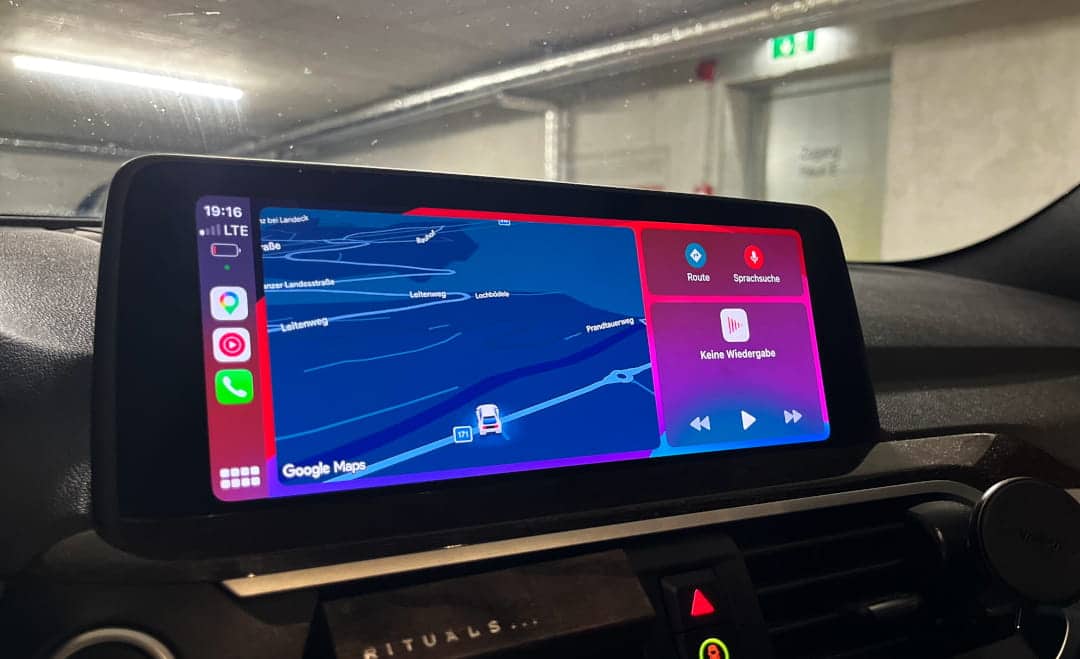
Use the generator now and quickly and easily find out if your car is compatible!
FAQ – Frequently Asked Questions about Activating BMW CarPlay
Affiliate links are marked with a *. When you purchase one of these products, we receive a small commission. Nothing changes for you and the offer remains the same. You can find more information about affiliate links here here.
More Articles
Do new cars have to be broken in? – What still applies today!
Neuwagen einfahrenWas heute noch gilt – und was nicht mehr Der Neuwagen steht vor der Tür, der Tacho zeigt eine…

Does My BMW Have a WiFi Antenna?
Does my BMW have a WiFi antenna?Here is how to find out! Does your BMW even have a WiFi antenna? Especially anyone who wants Apple CarPlay…

KINGBOLEN Ediag Elite | How good is the diagnostic device?
The KINGBOLEN Ediag EliteOur experience You are a demanding hobby mechanic and are looking for a diagnostic device that doesn't just display error codes, but...