

Does My BMW Have a WiFi Antenna?
Here's how to find out!
3 Methods: Does My BMW Have a WiFi Antenna?
There are three reliable ways to find out if your BMW was equipped with a Wi-Fi antenna from the factory.
Method 1: Check via the iDrive menu (not 100%)
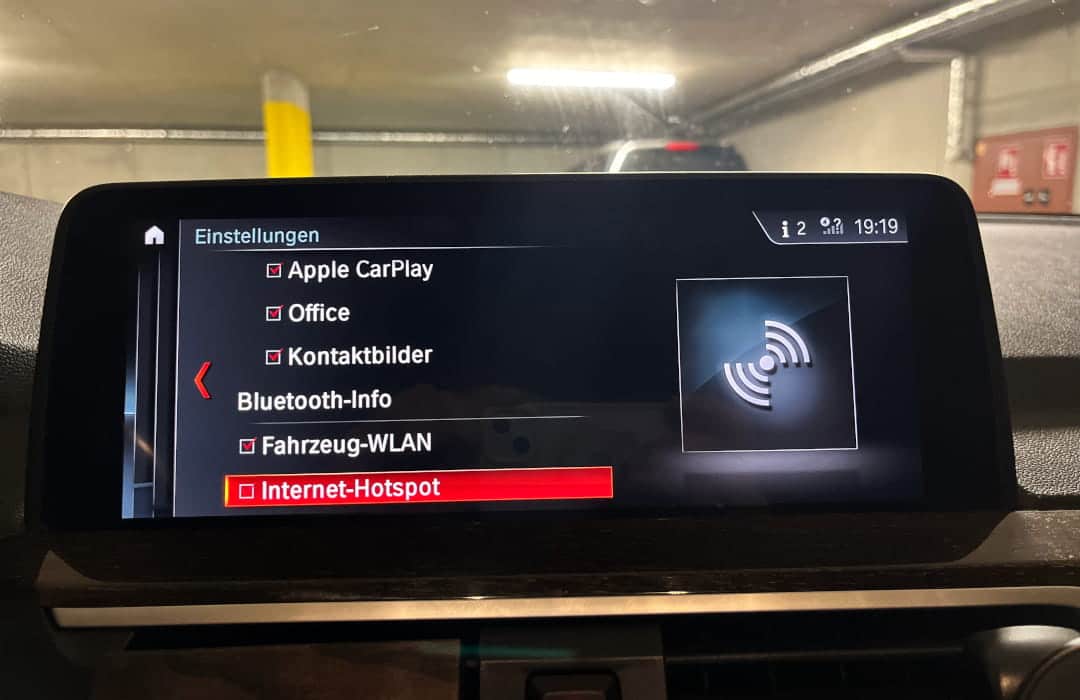
The fastest way is directly through your vehicle's infotainment system. However, this method does not provide 100% certainty as to whether a Wi-Fi antenna is actually installed in your vehicle.
While you can set up a Wi-Fi hotspot without a Wi-Fi antenna, you won't be able to receive any Wi-Fi signals. However, this is exactly what is required to use Wireless CarPlay. If the “Wi-Fi Hotspot” menu option is completely missing from your infotainment system, you can, however, assume with a high probability that no Wi-Fi antenna is installed and Wireless CarPlay will therefore not work.
To do this, navigate as follows:
If this menu item is missing, it indicates that no Wi-Fi hardware is present.
Method 2: Use a VIN Decoder
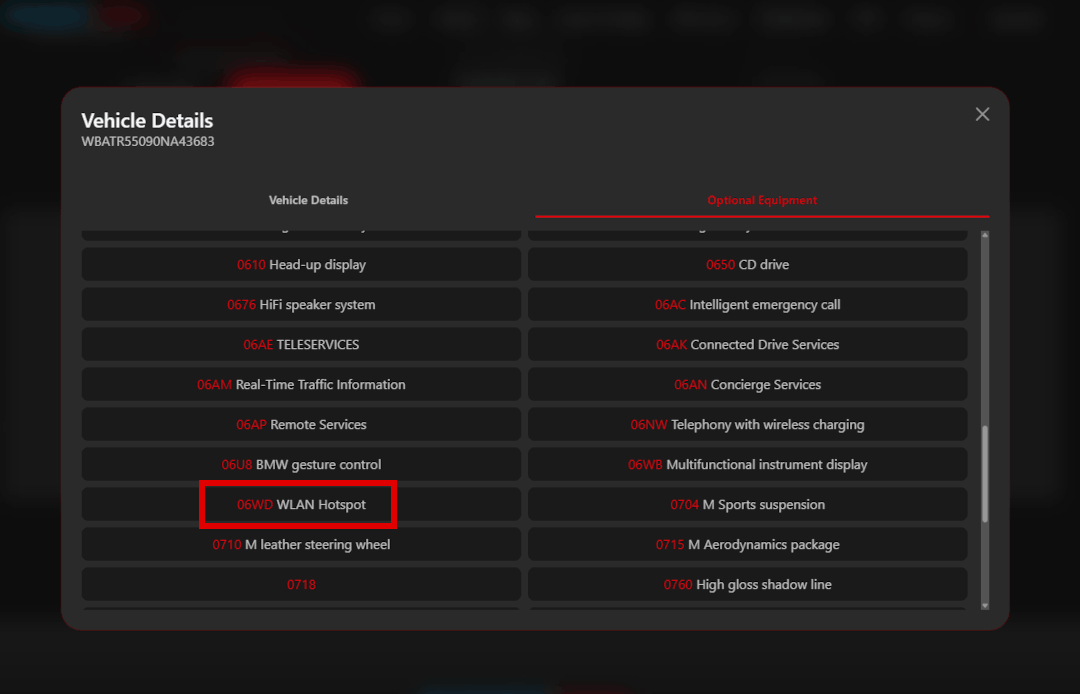
Using a BMW VIN decoder (simply search for it on Google), you can retrieve the vehicle equipment directly from the factory data. Enter your 17-digit VIN on a relevant BMW VIN decoder and then look for the following equipment codes:
If these codes (or similar ones indicating a WiFi antenna or CarPlay preparation) are present, your BMW comes equipped with a factory-installed WiFi antenna. If both codes are missing, the Wi-Fi hardware was not included as standard.
Method 3: Method 3: Briefly remove the radio (recommended)
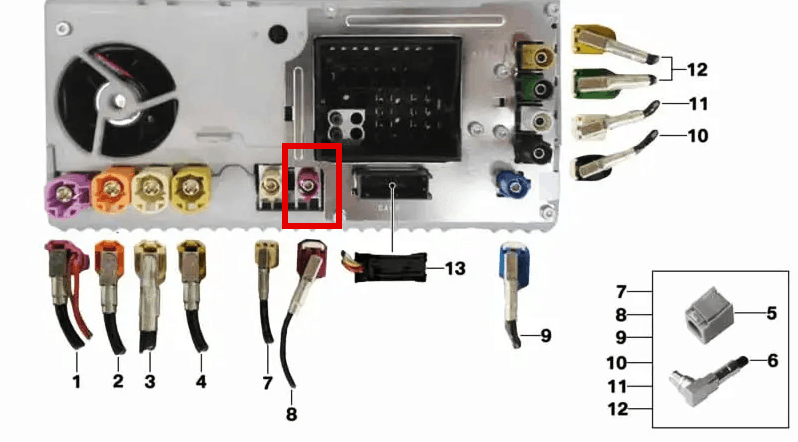
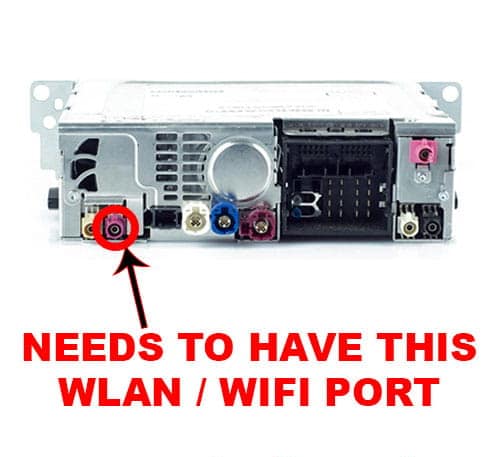
However, the safest way to be sure is to briefly remove your radio. Further down in the post you will find a guide on how to quickly and easily remove your HeadUnit without having to disconnect cables. In the following pictures you can see where the WIFI antenna is located on an NBT EVO and on the back of an ENTRYNAV2.
Why does BMW even need a WiFi antenna?
The Difference Between Bluetooth and Wi-Fi in CarPlay
Many BMW owners assume that Apple CarPlay works via Bluetooth—this is a common misconception. In fact, Bluetooth is only responsible for the so-called handshake: the iPhone and the vehicle recognize each other and establish an initial connection. However, the actual, data-intensive transmission—meaning image, sound, and control—runs entirely over a direct Wi-Fi connection.
This means: Without a BMW WiFi antenna, CarPlay can be detected but not used. The antenna is therefore not an optional gimmick, but a technical requirement for wireless CarPlay.
What Exactly Does a Wi-Fi Antenna Do?
The BMW Wi-Fi antenna establishes the high-frequency data connection between your iPhone and the head unit. It transmits and receives in the 2.4 GHz and/or 5 GHz frequency band – just like a conventional home Wi-Fi router. The signal is strong enough to easily penetrate the plastic trim of the vehicle's interior, which is why the antenna is usually invisibly installed – often behind the glove compartment or behind the climate control unit near the head unit.

- Equipped with a high-quality antenna, it ensures stable signal reception for your vehicle's Wi-Fi and Bluetooth systems. Guarantees reliable connectivity and seamless data transmission. Thanks to the self-adhesive base, it can be mounted anywhere.
- Compatible with Bluetooth, Wi-Fi, 3G, and GSM media systems, guaranteeing seamless connectivity and optimal performance.
- The antenna comes with a 1.5-meter cable and a double-sided adhesive surface, allowing it to be effortlessly installed anywhere in your vehicle—ideal for DIY projects.
- It is made of ABS material, is weather-resistant and durable.
BMW WiFi Antenna Retrofit: How to Do It
If you have found that your BMW does not have a Wi-Fi antenna according to the methods mentioned above, but you still want to retrofit one, you should check whether your head unit has a FAKRA connector for a Wi-Fi antenna.
The best way to check this is by removing the trim strips and the climate control panel to take a look. Here is the basic procedure:
Step-by-Step: Installing a Wi-Fi Antenna
1.) Remove the elongated trim strip. The best way to remove this is with a prying tool, as the trim strip is only clipped in.
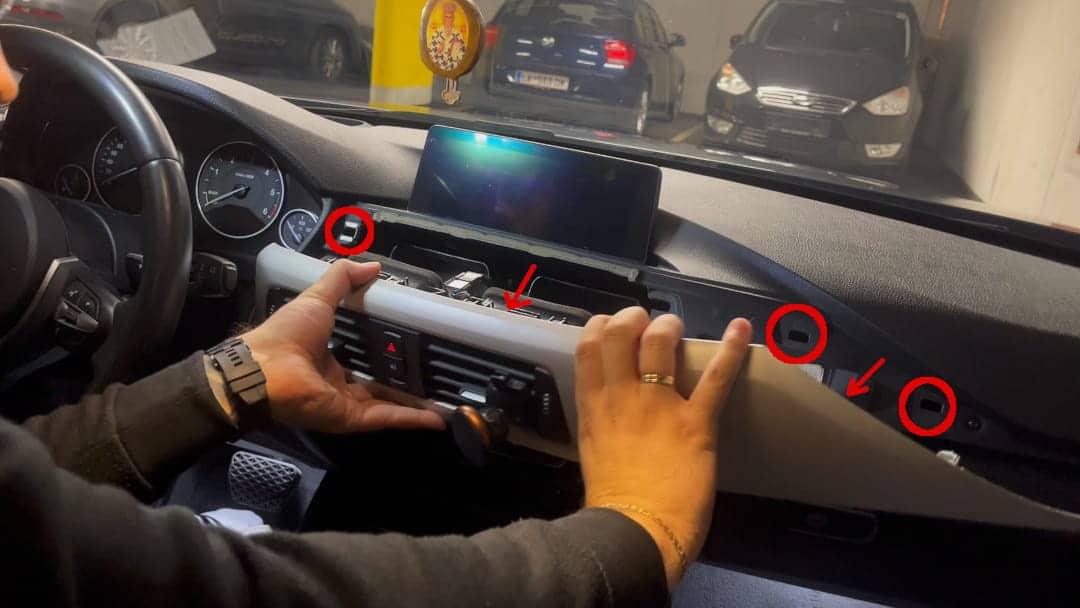
2.) Disconnect the hazard warning flasher plug at the top near the air vents. Simply unclip the plastic cover under the climate control panel and above the cup holders.
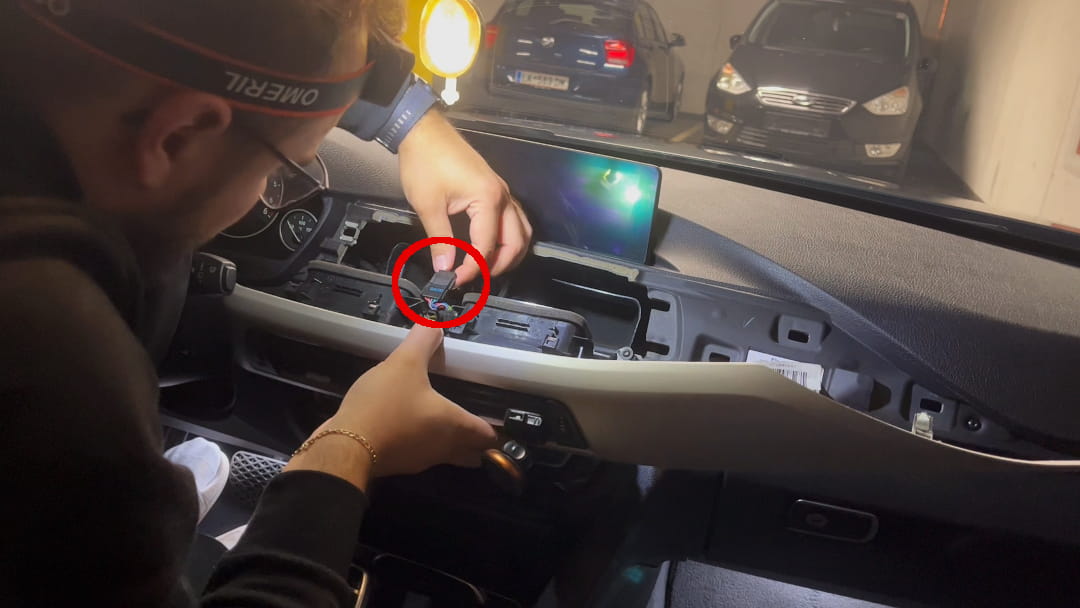
3.) Then, 4 screws will become visible that hold the climate control panel. Simply unscrew these and set the climate control unit aside.
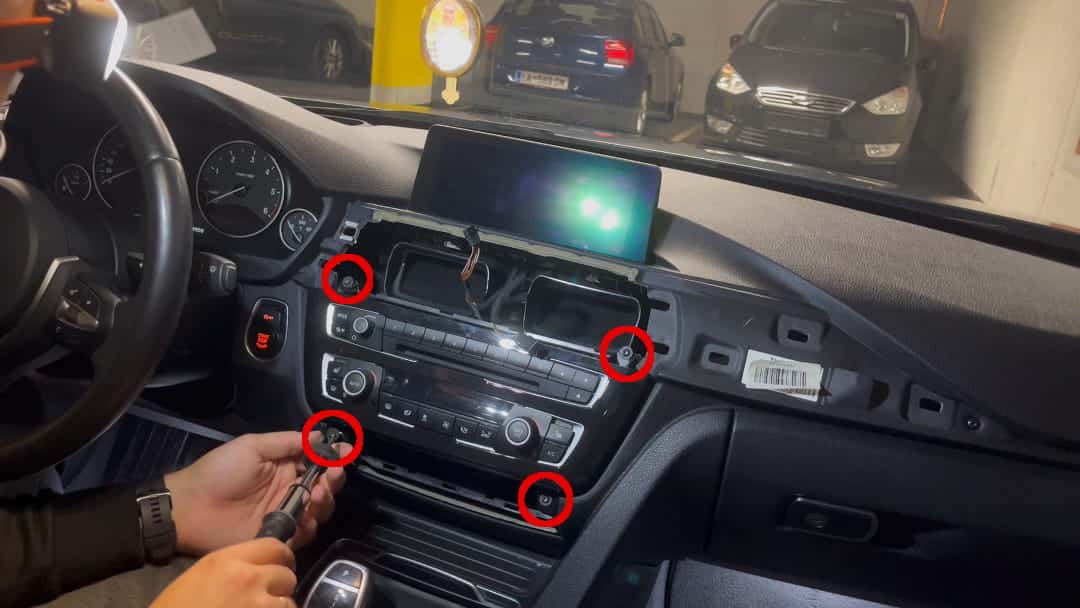
4.) Below this, 2 screws are now visible that hold the computer or the head unit. Unscrew these and slowly pull the head unit out.
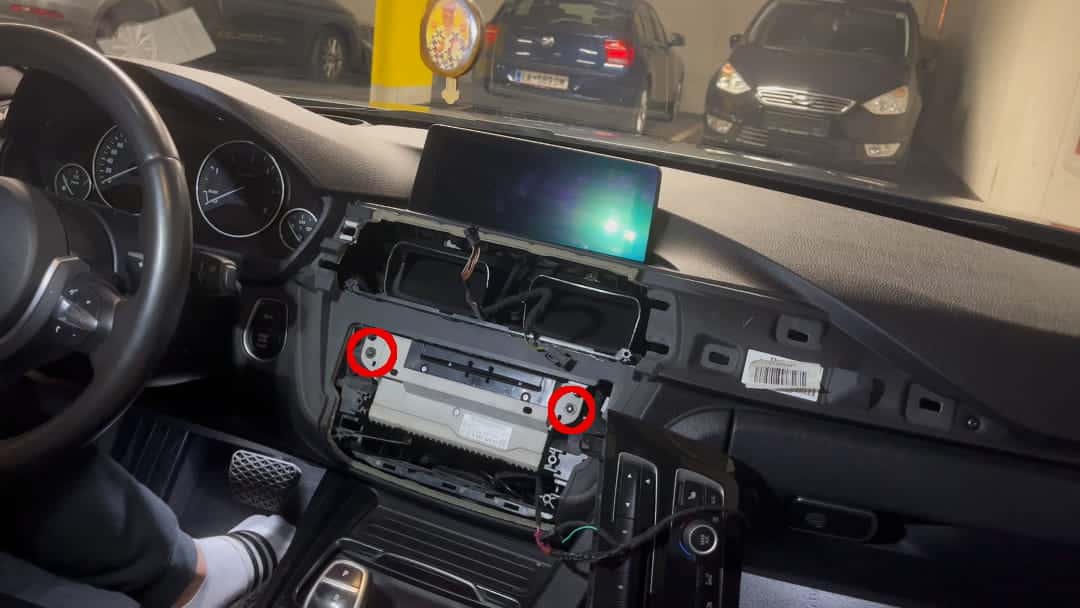
5.) Now you can check the rear of the head unit to see if there is a FAKRA connector for a Wi-Fi antenna. If not, you won't be able to retrofit a Wi-Fi antenna or activate CarPlay – unless you upgrade to a newer head unit.
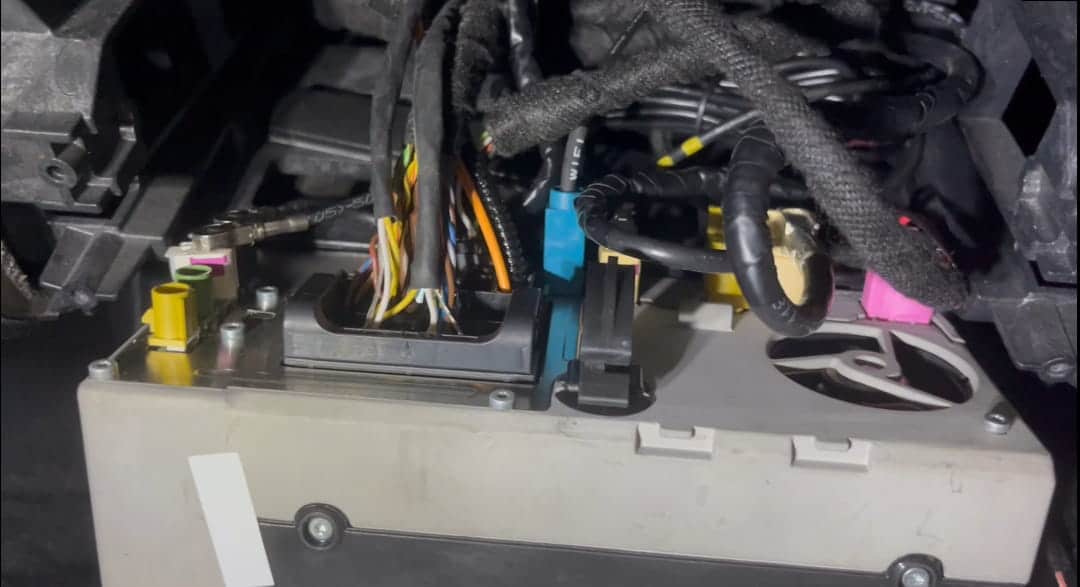
6.) If there is a connection for the Wi-Fi antenna, simply plug in the Wi-Fi antenna and you are done. You can easily secure the antenna somewhere in the cavity; it does not need to be routed to the outside.
7.) Finally, reassemble everything in reverse order.
Where to Buy a WiFi Antenna?
A compatible FAKRA Wi-Fi antenna across the entire BMW vehicle range:
- Equipped with a high-quality antenna, it ensures stable signal reception for your vehicle's Wi-Fi and Bluetooth systems. Guarantees reliable connectivity and seamless data transmission. Thanks to the self-adhesive base, it can be mounted anywhere.
- Compatible with Bluetooth, Wi-Fi, 3G, and GSM media systems, guaranteeing seamless connectivity and optimal performance.
- The antenna comes with a 1.5-meter cable and a double-sided adhesive surface, allowing it to be effortlessly installed anywhere in your vehicle—ideal for DIY projects.
- It is made of ABS material, is weather-resistant and durable.
Once the Wi-Fi antenna is installed or retrofitted, you now have the option to activate Apple CarPlay.
Conclusion and Next Steps
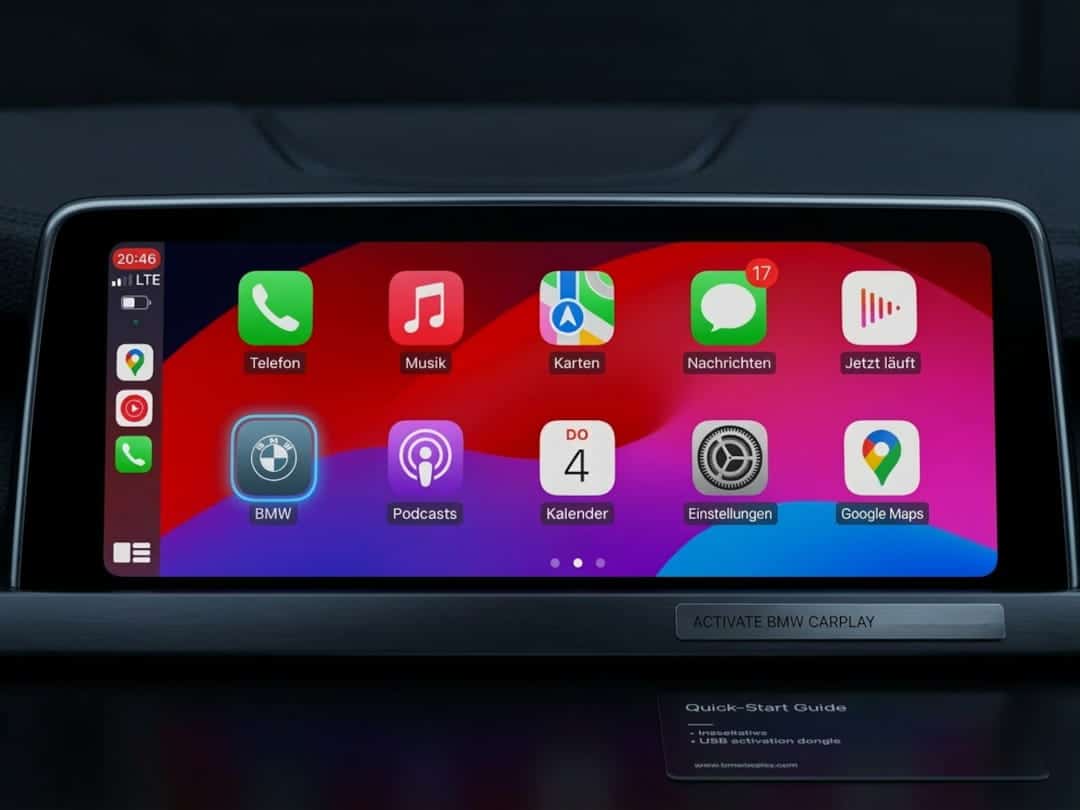
Whether your BMW has a WiFi antenna can be quickly and reliably determined using the three methods described: via the iDrive menu, the VIN decoder, or with E-SYS. If the antenna is missing, that's not a problem – the hardware can be easily retrofitted with the right FAKRA antenna. To finally activate CarPlay, simply follow this button:
Frequently Asked Questions (FAQ)
Affiliate links are marked with a *. When you purchase one of these products, we receive a small commission. Nothing changes for you and the offer remains the same. You can find more information about affiliate links here in our privacy policy.
More Articles
Retrofit Speed Limit Info: Code Your BMW G Series Yourself!
Speed Limit Info nachrüstenBMW G-Serie selbst codieren Die Kamera sitzt oben in der Frontscheibe, das Navi kennt jede Straße –…

Do new cars have to be broken in? – What still applies today!
Breaking in a new carWhat still applies today – and what does not The new car is in the driveway, the odometer shows a…

Unlock Original BMW CarPlay – DIY, Cheap & Easy
Retrofitting BMW Apple CarPlay Yourself, Cheap & Easy You want to use Apple CarPlay in your BMW but do not feel like…
