

Retrofit Apple CarPlay for BMW
DIY, Affordable & Easy
What You Need to Unlock CarPlay
Discover how to easily determine if your BMW is equipped with a factory-installed WIFI antenna by visiting:
"Does my BMW have a WIFI Antenna?"


Step 1: The CarPlay Generator for BMW
The first and most important step is using our CarPlay Generator for BMW. This online tool does two things at once: based on the data you select, it checks whether your BMW is CarPlay-compatible at all, and then automatically generates the vehicle-specific FSC code for you.
This also checks whether your BMW is suitable for Fullscreen CarPlay or only for Splitscreen CarPlay. The generator guides you through the individual steps and also shows you where you can find all the necessary data for your vehicle.
How to use the generator:
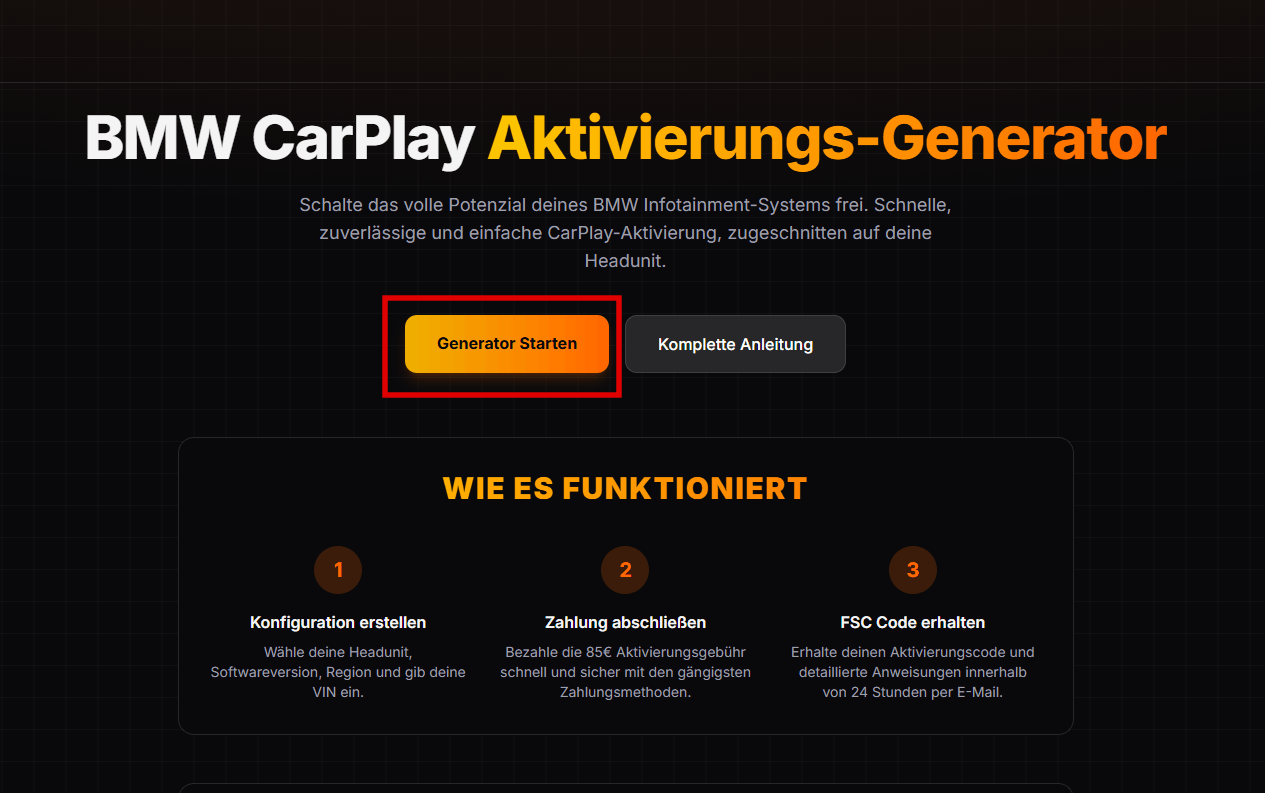
Open the CarPlay Generator here: CarPlay Generator for BMW or use the button above. Then click on “Start Generator”.
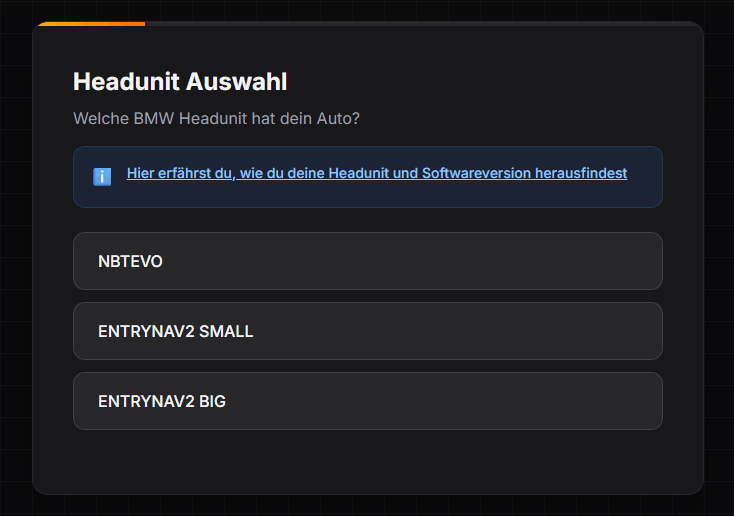
In "Step 1", you now select your head unit. If you do not know how to find this out, simply click on the blue link above the selection field. There, you will find step-by-step instructions on how to reach your head unit version and your software version via the menu path.
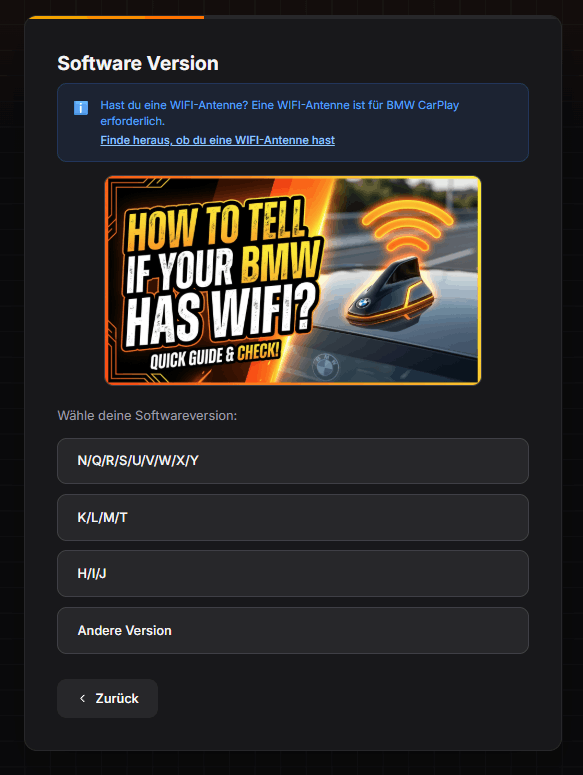
In “Step 2”, you then select your software version. In addition, you can use the info section to find out whether you have a WIFI antenna installed. In most cases, however, this is already prepared at the factory.
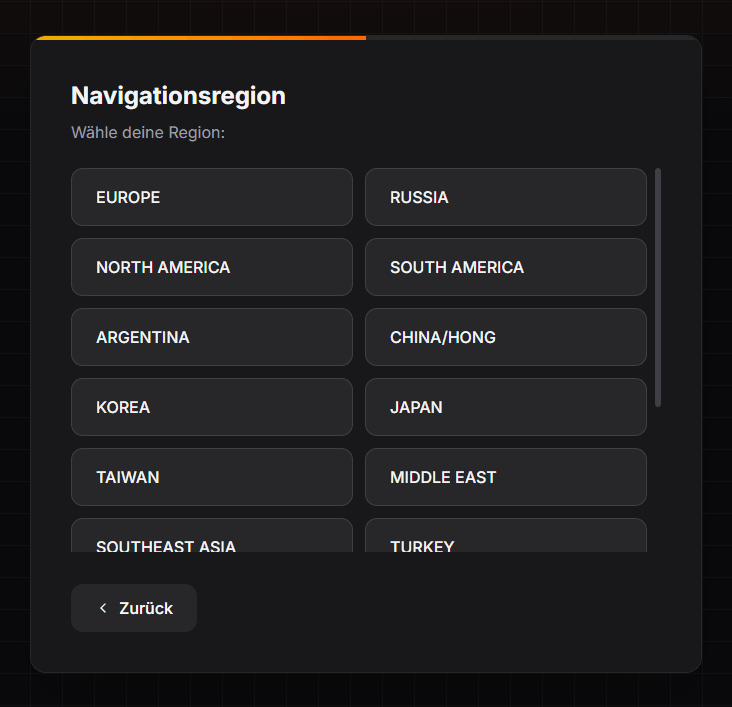
In “Step 3”, you now select your region.
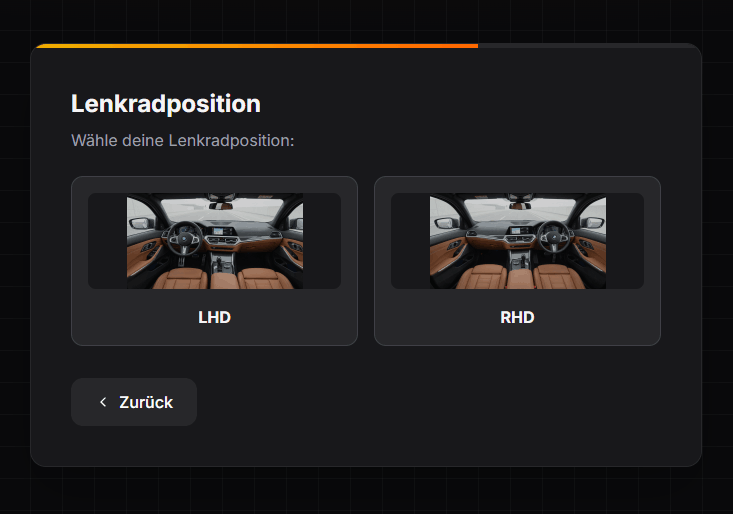
In “Step 4” you select your steering wheel position. Either “RHD” for right-hand drive or “LHD” for left-hand drive.
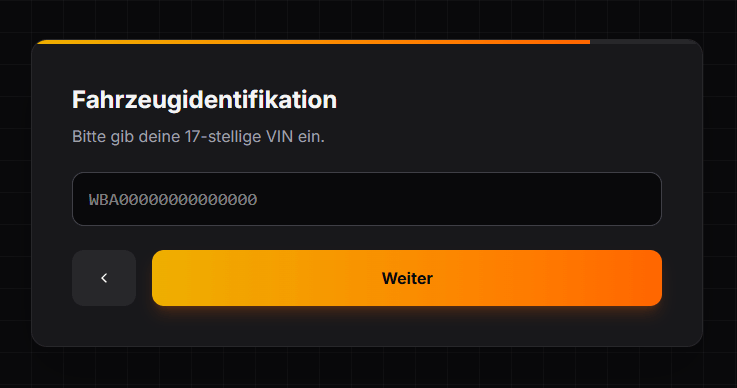
In “Step 5”, now enter your vehicle identification number (VIN/FIN). Make sure you enter it correctly.
In the last step, namely "Step 6", you first check all your entries again. In addition to the summary, you will be shown whether your head unit version supports fullscreen CarPlay or only splitscreen CarPlay. If everything is correct, enter your email address correctly, click on verify, and finally on the button "Proceed to Payment". There you will be redirected to the payment page.
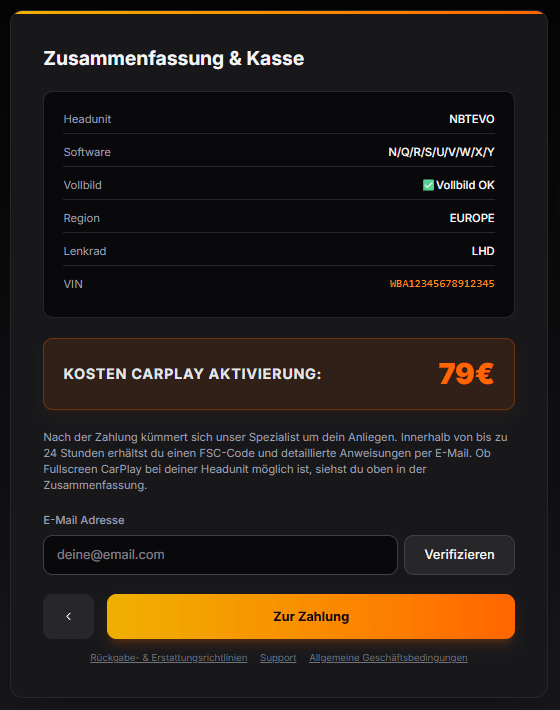
After payment, our specialists will send you the FSC code with further instructions by email as quickly as possible (maximum within 24 hours). You will also find a link to the software that is required in the email.
Step 2: Unlock BMW CarPlay Kodowanie
As soon as you have received your FSC code and downloaded the software (available here: Software), head to your car with the ENET cable and the Windows laptop.
Note! Your laptop must be connected to the internet!
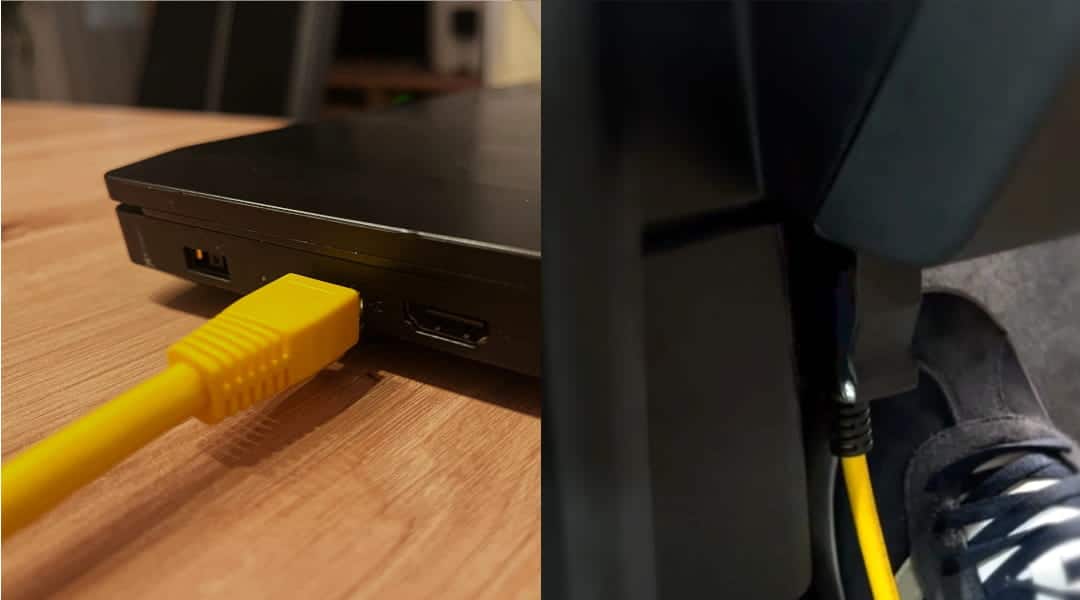
Plug the ENET cable into the OBD-II port of your BMW (usually under the dashboard on the driver's side). Connect the other end of the cable to your laptop's Ethernet port. Make sure your vehicle is switched on (ignition on, engine running only in case of a weak battery).
Next, start the software that you will also receive by email along with the code from the generator. The software does not need to be installed after downloading. You can launch the software directly from the downloaded file.
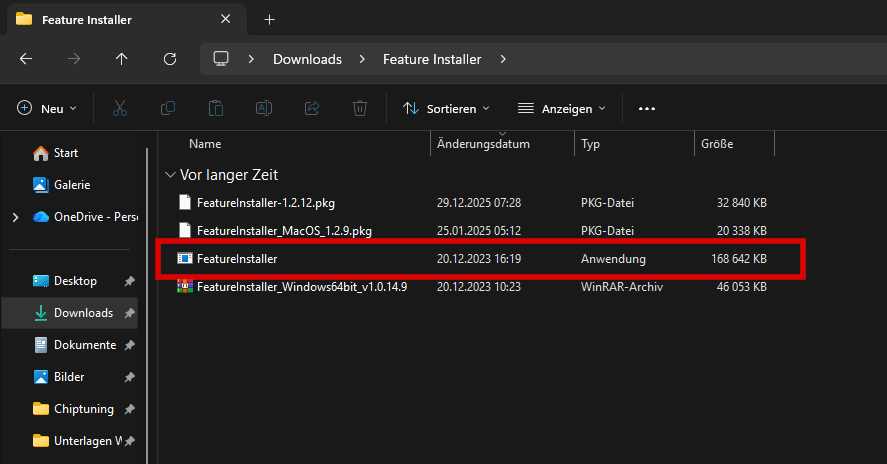
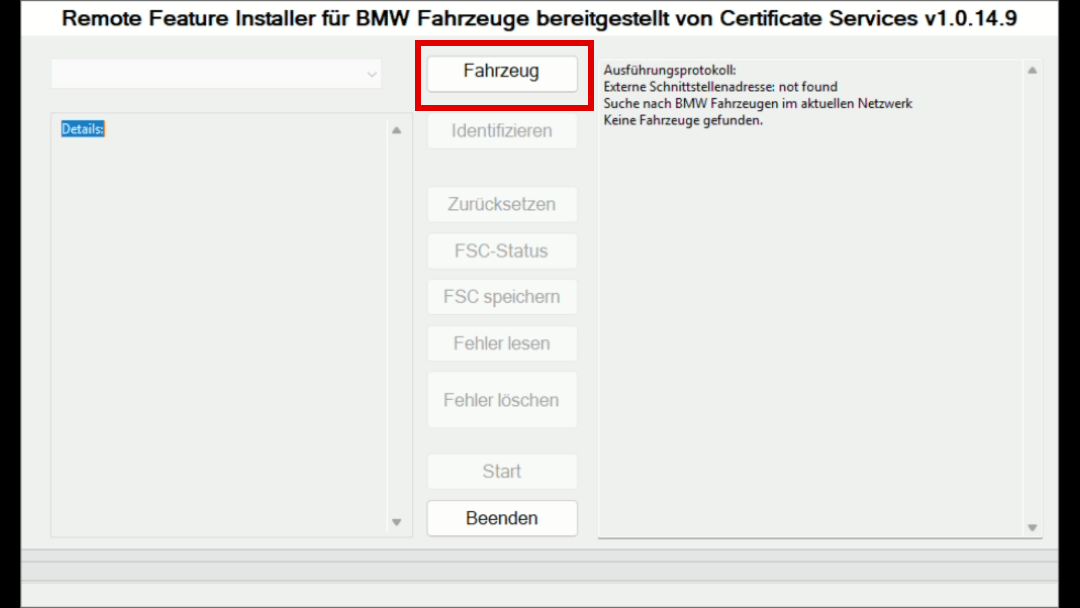
If the software has not already automatically recognized your vehicle and read the VIN, first click on the "Vehicle" button.
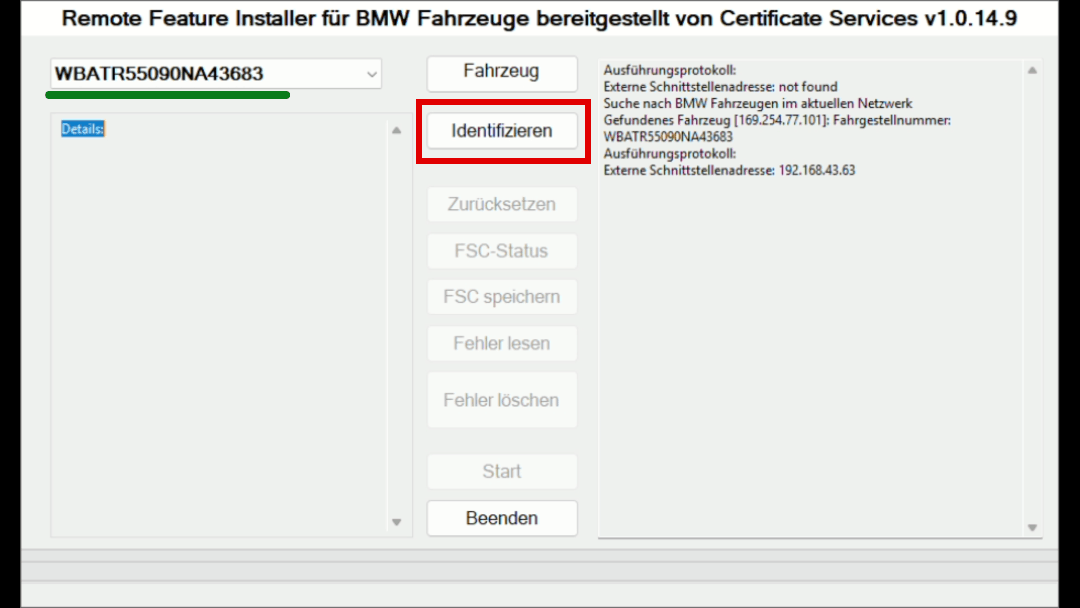
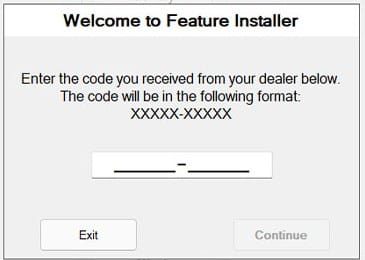
Next, click on the "Identify" button. The software will then ask you for the code you received via email from our generator. Enter it there and click on "Continue".
After a few seconds, the software should have identified your head unit. Then, simply click on "Start".
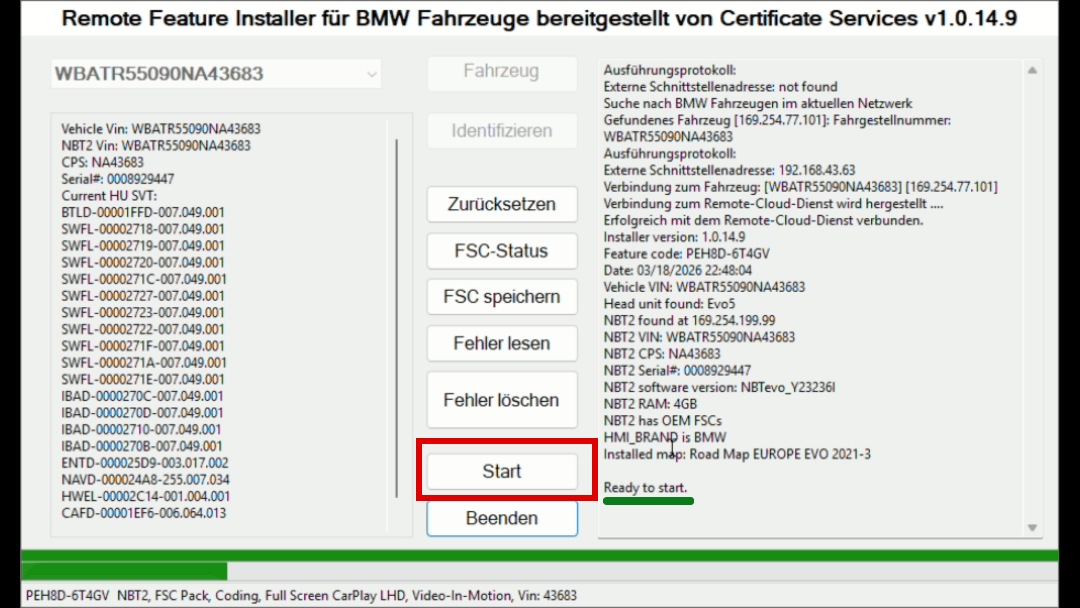
After starting, the program goes through exactly three steps. During programming, your head unit will turn blue, and it is possible that it restarts several times. Make sure that both your laptop and your vehicle have sufficient battery power.
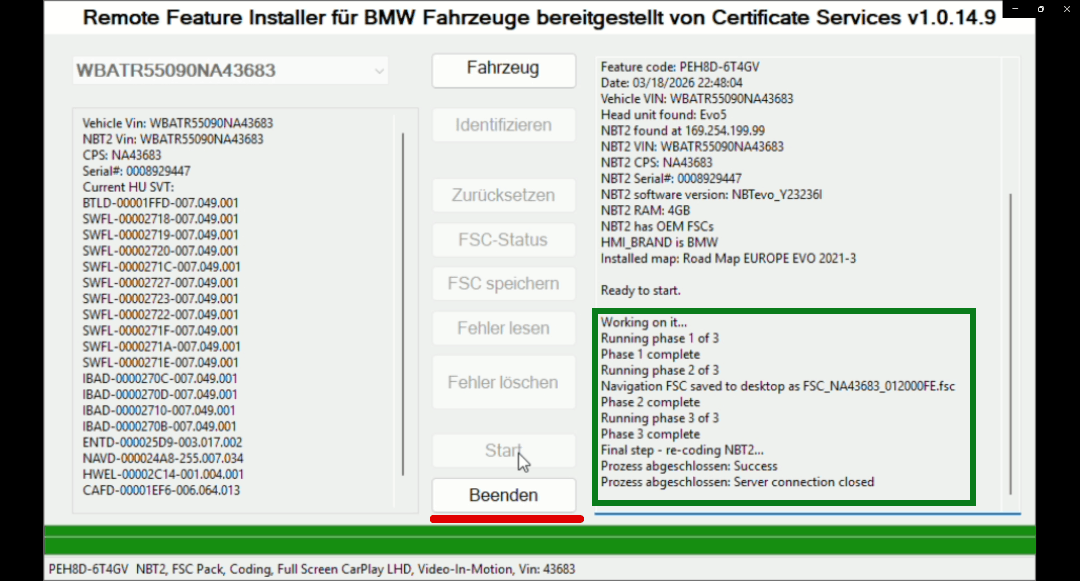
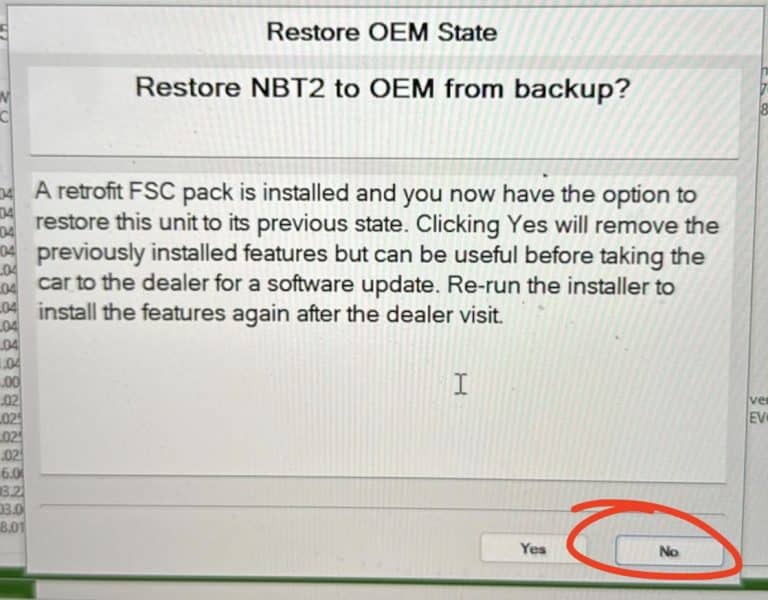
The process is completely reversible
If the CarPlay function has been deactivated after a BMW workshop visit or a software update, you can reactivate it at any time using the same software and code. Likewise, the activation can be completely reversed if needed. So you always retain full control.
Step 3: Restart Head Unit & Test
After coding, you must restart the headunit. There are three methods available for this:
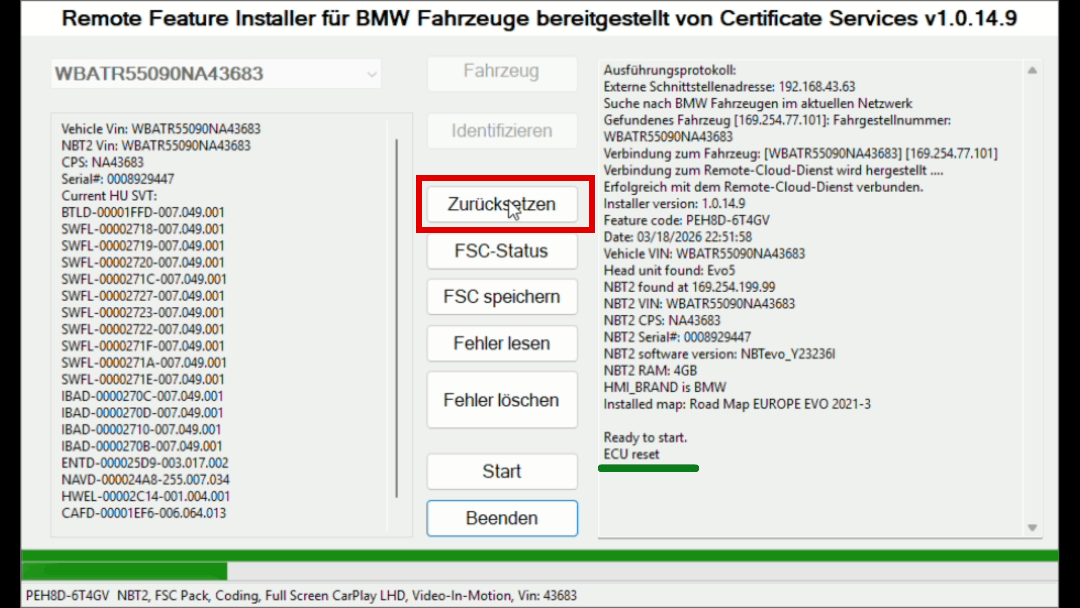
Once you have successfully reset your head unit, CarPlay should be available.
Conclusion: Unlock BMW CarPlay Affordably
With an affordable ENET cable, a Windows laptop and the CarPlay Generator for BMW, you can unlock Apple CarPlay in your BMW yourself – without a workshop appointment and without complicated technology.
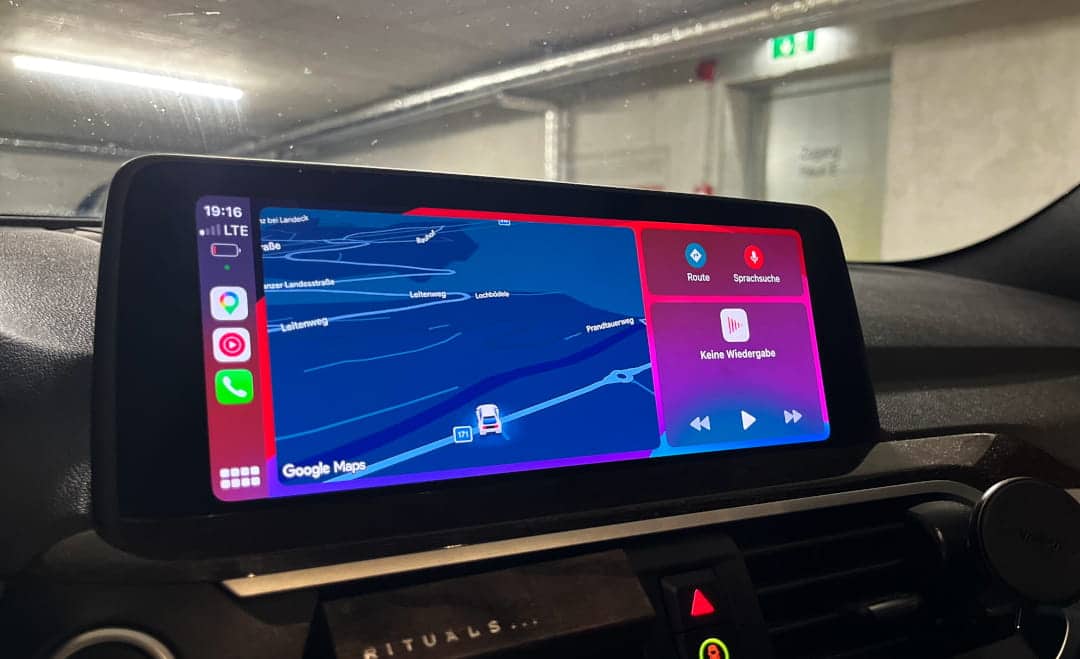
Use the generator now and quickly and easily find out if your car is compatible!
Legal notice: This guide is for informational purposes only. BMW is a registered trademark of BMW AG, Apple CarPlay is a trademark of Apple Inc. Both are mentioned solely to describe compatibility. DIY-Leonmotors has no connection with BMW AG or Apple and is neither operated nor endorsed by them. The CarPlay Generator is a paid service offered by DIY-Leonmotors. The actual availability and functionality of the activation described depend on the respective vehicle and its equipment. Changes to the vehicle software may affect warranty or statutory guarantee claims. If necessary, please check with your vehicle manufacturer or dealer in advance about the conditions that apply to your vehicle.
FAQ – Frequently Asked Questions about Activating BMW CarPlay
Affiliate links are marked with a *. When you purchase one of these products, we receive a small commission. Nothing changes for you and the offer remains the same. You can find more information about affiliate links here in our privacy policy.
More Articles
Retrofit Speed Limit Info: Code Your BMW G Series Yourself!
Retrofit Speed Limit Info: Code Your BMW G Series Yourself The camera sits at the top of the windscreen, the navigation system knows every road –…

Do new cars have to be broken in? – What still applies today!
Breaking in a new carWhat still applies today – and what does not The new car is in the driveway, the odometer shows a…

Does My BMW Have a WiFi Antenna?
Does my BMW have a WiFi antenna?Here is how to find out! Does your BMW even have a WiFi antenna? Especially anyone who wants Apple CarPlay…
